
GitHub Integration
Connect your GitHub repository to automatically deploy Dart and Flutter apps on every push, with support for production and preview deployments.
Connect your GitHub repository to deploy automatically from pushes and merges. GitHub integration replaces manual deployment steps and keeps your workflow continuous, enabling automatic deployments for both preview and production environments.
With GitHub integration, you can:
- Import a GitHub repository to create and deploy a new Globe project
- Automatically trigger deployments on every push to any branch
- Designate a production branch for live releases
- Connect existing Globe projects to GitHub repositories
- Disconnect or switch repositories anytime
- View deployment status for each commit
Globe integrates with GitHub via the GitHub Application.
How to Create a Project from a GitHub Repository
When creating a new project, you can import a GitHub repository during the setup process.
Step 1. Authorize GitHub Access
- From the Globe dashboard, go to Projects → Create Project
- Select Connect your GitHub account and authorize the Globe GitHub App
- You'll be redirected back to the Project Create screen afterward
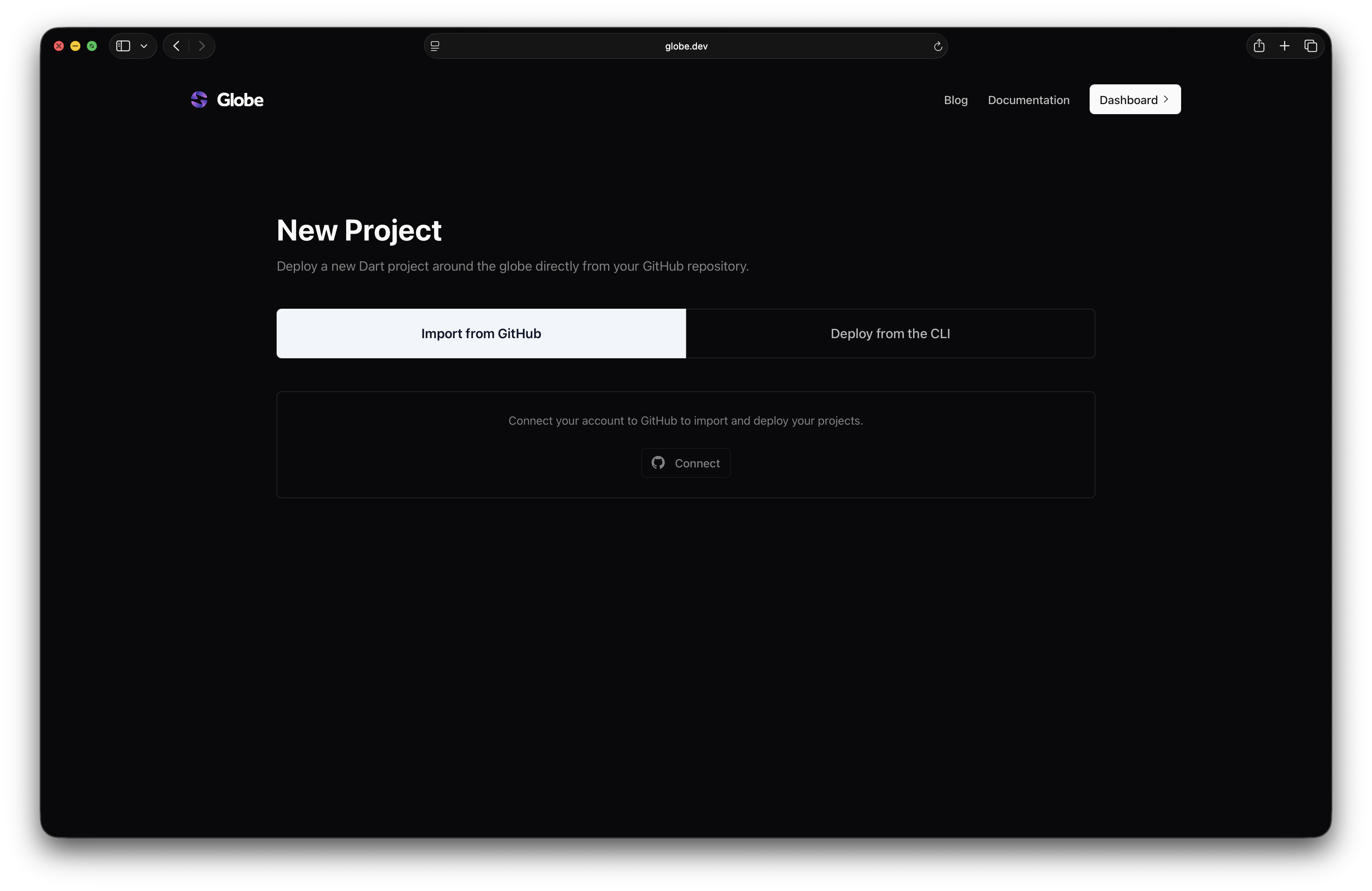
Step 2. Choose Repositories
After authorizing the GitHub app, configure the repositories that are available to Globe:
- Select Configure the GitHub app
- Select specific or all repositories you want Globe to access
- You will be redirected to the Project Create screen
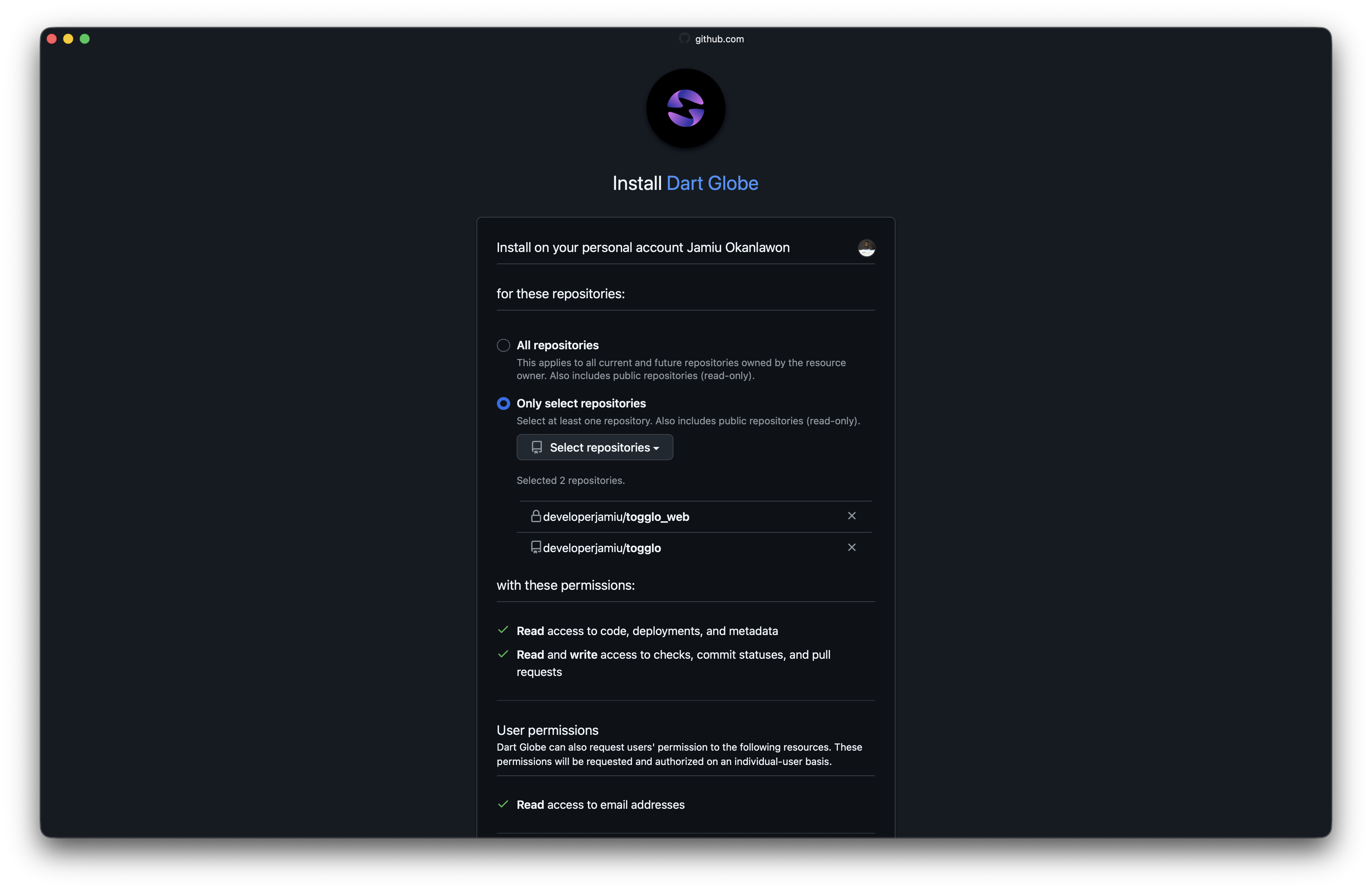
Step 3. Import & Configure
- Select Import next to the repository you want to use
- Configure the following:
- Import settings: organization, name, root directory, branch
- Build settings: framework preset, build command, entry point
- Build config: SDK version, build runner, Melos
- Environment variables
- Select Deploy to trigger the first deployment
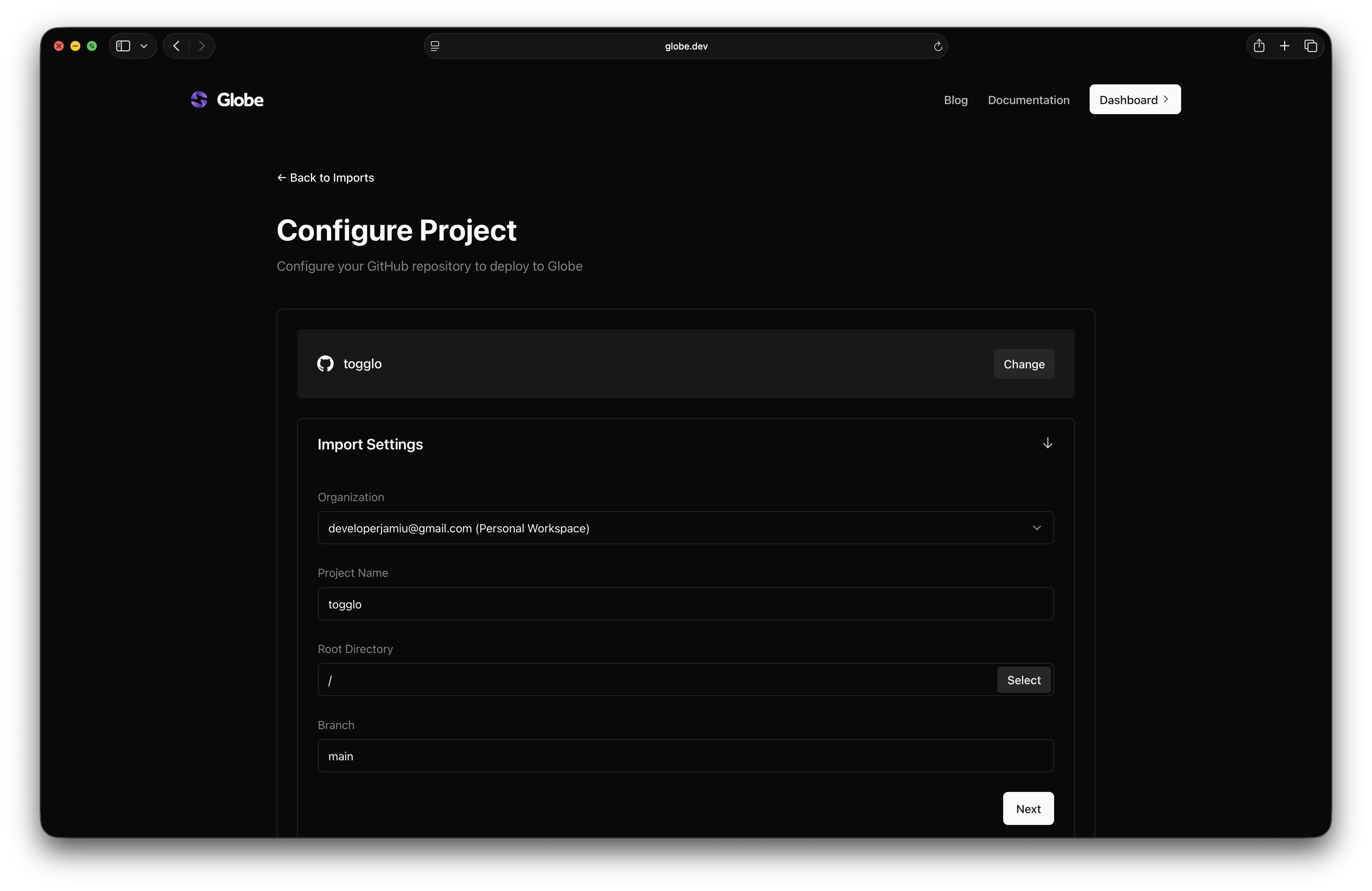
From now on, every time you push to GitHub, Globe will automatically create a new deployment:
- For your production branch, a production deployment is created
- For all other branches, a preview deployment is triggered
How to Connect a Repository to an Existing Project
If you've already deployed a project (e.g., via CLI) and want to connect it to a GitHub repository:
- Open the project → Go to Settings → Git
- Select Connect and choose your repository
- Set deployment configurations as needed
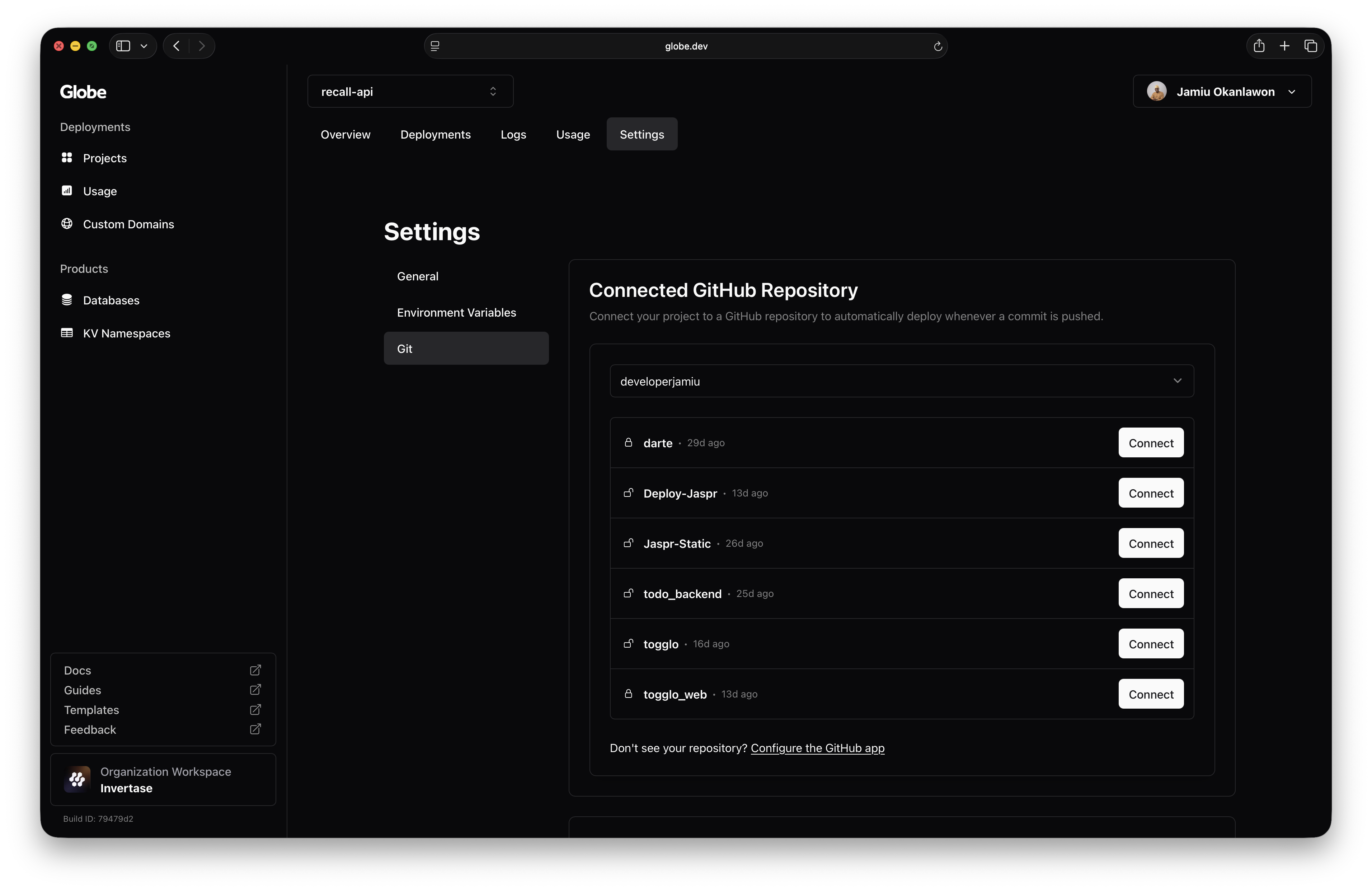
Once connected, pushes to your GitHub repository will automatically trigger deployments for this project.
How GitHub Integration Works
The GitHub integration enables automatic deployments based on your repository activity:
- Preview Deployments: Triggered by pushes to any branch except your production branch
- Production Deployments: Triggered by pushes to your designated production branch
- Commit Status: Globe adds deployment status indicators to your GitHub commits
How to Disconnect a GitHub Repository
To stop automatic deployments:
- Go to your project → Settings → Git
- Select Disconnect
Disconnecting from GitHub will not delete existing deployments. It only stops new deployments from being triggered by Git pushes.
Best Practices
- Use a clear branching strategy (e.g.,
mainfor production,devfor testing) - Protect your production branch if collaborating in teams
- Consider pairing this with the CLI for local preview builds
- Only connect necessary repositories for clarity and security; follow the principle of least privilege
Related Topics
- Deployments - Understand how GitHub integration triggers deployments
- Static Assets - Serve static files from your deployment
- Set up CI/CD with GitHub Integration - Detailed guide for GitHub integration setup