
Managing Your Database
Manage your Globe DB databases through the dashboard, including data manipulation, SQL queries, external client connections, and database deletion.
The Globe dashboard is the central hub for managing your databases. It provides an integrated studio for data manipulation and the credentials needed to connect from external clients.
Accessing the Dashboard
- Navigate to the Globe dashboard.
- Go to the Databases tab in the main navigation.
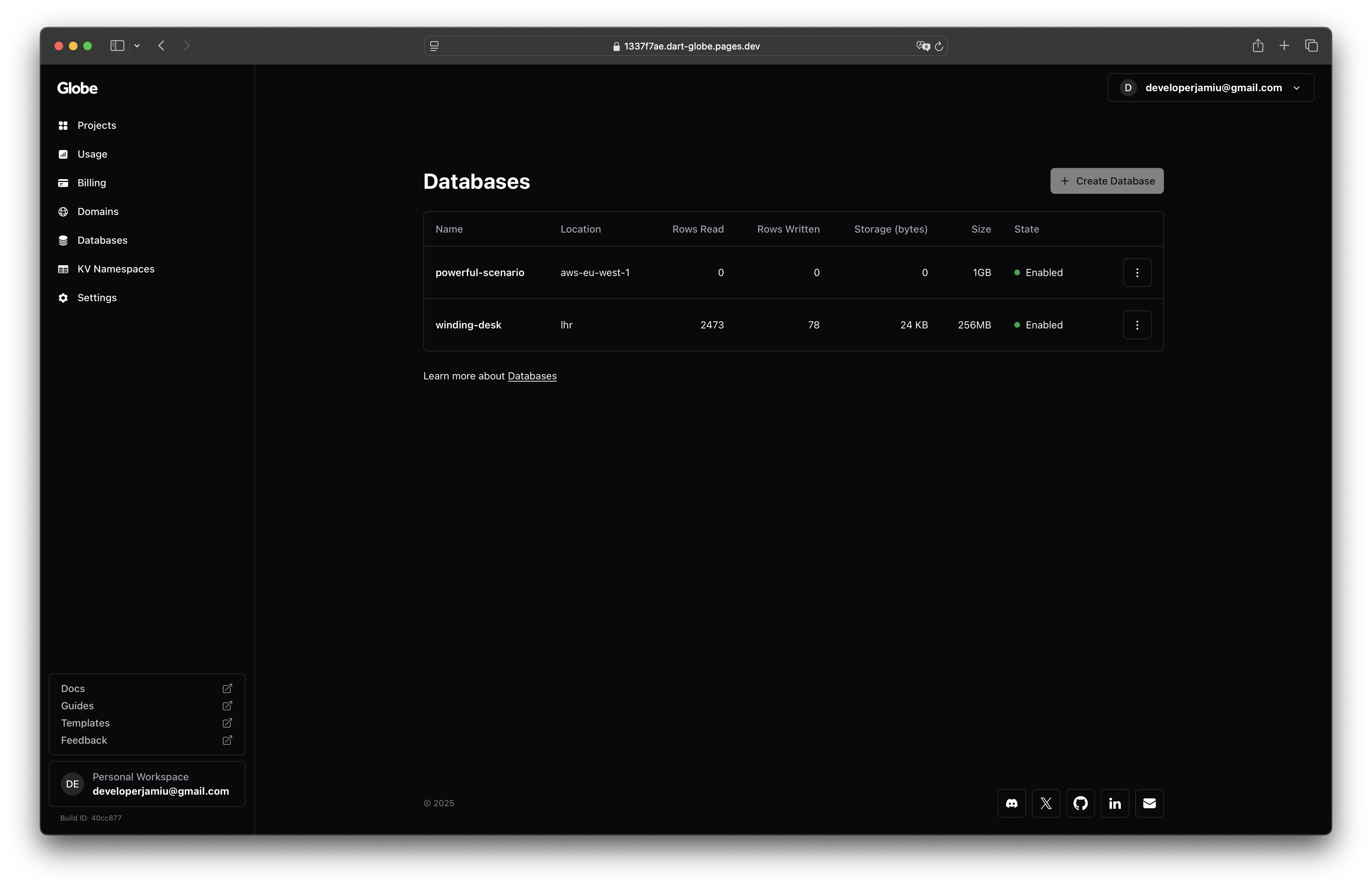
This page displays a list of all the databases you have created. If you have not created a database yet, this page will be empty.
Interacting with Data
The Globe dashboard integrates Outerbase Studio, allowing you to directly query, edit, and manage your data. To open the studio, click on a database name from your list.
The studio allows you to:
- Browse: View the schema, tables, and rows
- Query: Write and execute raw SQL queries
- Edit: Insert, update, or delete rows
Connecting from External Tools
You can connect to your Globe DB from any client that supports the LibSQL protocol.
To find your credentials:
- From the database list, click the menu icon (⋮) next to the database name.
- Select Connect to database from the menu.
- Scroll to the Connect using any LibSQL Client section to find your URL and generate a token.
Deleting a Database
Deleting a database is an irreversible action and will permanently erase all of its data.
- From the database list, click the menu icon (⋮) next to the database name.
- Select the Delete option.
- Confirm the action by typing the name of the database.
Database Limits
Projects on the free tier have the following limits:
- Two active databases per project
- 1GB of storage per database
To create a new database when at your limit, you must first delete an existing one.
Related Topics
- Globe DB Overview - Learn about Globe DB features
- Quickstart - Get started with Globe DB
- Build Notes API with Globe DB - Complete CRUD API guide
- Build Notes API with Globe DB and Jao - Same CRUD API using Jao ORM and migrations